Presentation API
Presentation API 允許 使用者代理(例如 Web 瀏覽器)有效地透過大型顯示裝置(如投影儀和聯網電視)顯示 Web 內容。支援的多媒體裝置型別包括透過 HDMI、DVI 或類似介面有線連線的顯示器,以及透過 DLNA、Chromecast、AirPlay 或 Miracast 無線連線的顯示器。
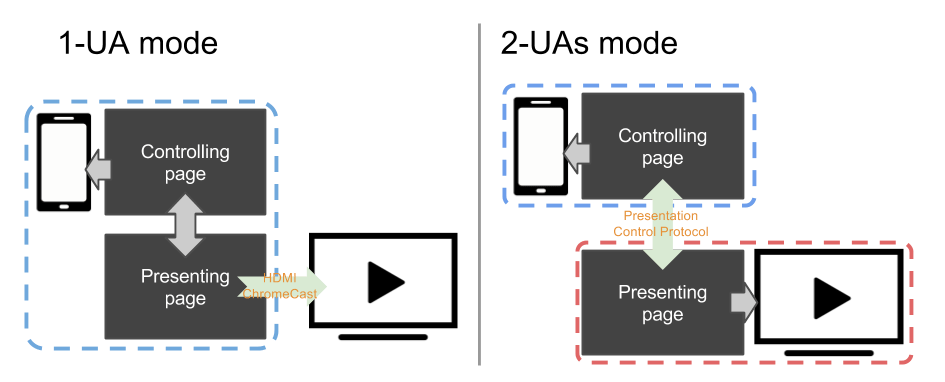
通常,網頁使用 Presentation Controller API 來指定要在演示裝置上呈現的 Web 內容並啟動演示會話。透過 Presentation Receiver API,正在演示的 Web 內容可以獲取會話狀態。透過為控制器頁面和接收器頁面提供基於訊息的通道,Web 開發人員可以實現這兩個頁面之間的互動。
根據演示裝置提供的連線機制,任何控制器頁面和接收器頁面都可以由同一個使用者代理呈現,也可以由不同的使用者代理呈現。
- 對於 1-UA 模式裝置,兩個頁面都由同一個使用者代理載入。但是,接收器頁面的渲染結果將透過支援的遠端渲染協議傳送到演示裝置。
- 對於 2-UAs 模式裝置,接收器頁面直接在演示裝置上載入。控制使用者代理透過支援的演示控制協議與演示裝置通訊,以控制演示會話並在兩個頁面之間傳輸訊息。
介面
Presentation-
在控制瀏覽上下文時,
Presentation介面提供了一種機制來覆蓋瀏覽器將演示內容啟動到外部螢幕的預設行為。在接收瀏覽上下文時,Presentation介面提供對可用演示連線的訪問。 PresentationRequest-
啟動或重新連線到由控制瀏覽上下文發起的演示。
-
一個
PresentationAvailability物件與可用的演示顯示相關聯,並代表演示請求的演示顯示可用性。 -
當與
PresentationRequest物件關聯的連線建立時,會在該物件上觸發PresentationConnectionAvailableEvent。 PresentationConnection-
每個演示連線都由一個
PresentationConnection物件表示。 PresentationConnectionCloseEvent-
當演示連線進入
closed狀態時,會觸發PresentationConnectionCloseEvent。 PresentationReceiver-
PresentationReceiver允許接收瀏覽上下文訪問控制瀏覽上下文並與它們進行通訊。 PresentationConnectionList-
PresentationConnectionList表示未終止的演示連線的集合。它也是新可用演示連線事件的監視器。
示例
下面的示例程式碼重點介紹了 Presentation API 的主要功能:controller.html 實現控制器,presentation.html 實現演示。兩個頁面都從域名 https://example.org 提供服務(https://example.org/controller.html 和 https://example.org/presentation.html)。這些示例假定控制頁面一次只管理一個演示。有關更多詳細資訊,請參閱程式碼示例中的註釋。
監視演示顯示的可用性
在 controller.html 中
<button id="presentBtn" class="hidden">Present</button>
.hidden {
  display: none;
}
// The Present button is visible if at least one presentation display is available
const presentBtn = document.getElementById("presentBtn");

// It is also possible to use relative presentation URL e.g. "presentation.html"
const presUrls = [
  "https://example.com/presentation.html",
  "https://example.net/alternate.html",
];

// Show or hide present button depending on display availability
const handleAvailabilityChange = (available) => {
  if (available) {
    presentBtn.classList.remove("hidden");
  } else {
    presentBtn.classList.add("hidden");
  }
};

// Promise is resolved as soon as the presentation display availability is known.
const request = new PresentationRequest(presUrls);
request
  .getAvailability()
  .then((availability) => {
    // availability.value may be kept up-to-date by the controlling UA as long
    // as the availability object is alive. It is advised for the web developers
    // to discard the object as soon as it's not needed.
    handleAvailabilityChange(availability.value);
    availability.onchange = () => {
      handleAvailabilityChange(availability.value);
    };
  })
  .catch(() => {
    // Availability monitoring is not supported by the platform, so discovery of
    // presentation displays will happen only after request.start() is called.
    // Pretend the devices are available for simplicity; or, one could implement
    // a third state for the button.
    handleAvailabilityChange(true);
  });
開始新的演示
在 controller.html 中
presentBtn.onclick = () => {
  // Start new presentation.
  request
    .start()
    // The connection to the presentation will be passed to setConnection on success.
    .then(setConnection);
  // Otherwise, the user canceled the selection dialog or no screens were found.
};
重新連線到演示
在 controller.html 檔案中
<button id="reconnectBtn" class="hidden">Reconnect</button>
const reconnect = () => {
  const presId = localStorage.getItem("presId");
  // presId is mandatory when reconnecting to a presentation.
  if (presId) {
    request
      .reconnect(presId)
      // The new connection to the presentation will be passed to
      // setConnection on success.
      .then(setConnection);
    // No connection found for presUrl and presId, or an error occurred.
  }
};
// On navigation of the controller, reconnect automatically.
reconnect();
// Or allow manual reconnection.
reconnectBtn.onclick = reconnect;
由控制使用者代理發起演示
在 controller.html 檔案中
navigator.presentation.defaultRequest = new PresentationRequest(presUrls);
navigator.presentation.defaultRequest.onconnectionavailable = (evt) => {
  setConnection(evt.connection);
};
設定 presentation.defaultRequest 允許頁面在控制使用者代理啟動演示時指定要使用的 PresentationRequest。
監視連線狀態並交換資料
在 controller.html 中
<button id="disconnectBtn" class="hidden">Disconnect</button>
<button id="stopBtn" class="hidden">Stop</button>
<button id="reconnectBtn" class="hidden">Reconnect</button>
let connection;

// The Disconnect and Stop buttons are visible if there is a connected presentation
const stopBtn = document.querySelector("#stopBtn");
const reconnectBtn = document.querySelector("#reconnectBtn");
const disconnectBtn = document.querySelector("#disconnectBtn");

stopBtn.onclick = () => {
  connection?.terminate();
};

disconnectBtn.onclick = () => {
  connection?.close();
};

function setConnection(newConnection) {
  // Disconnect from existing presentation, if not attempting to reconnect
  if (
    connection &&
    connection !== newConnection &&
    connection.state !== "closed"
  ) {
    connection.onclose = undefined;
    connection.close();
  }

  // Set the new connection and save the presentation ID
  connection = newConnection;
  localStorage.setItem("presId", connection.id);

  function showConnectedUI() {
    // Allow the user to disconnect from or terminate the presentation
    stopBtn.classList.remove("hidden");
    disconnectBtn.classList.remove("hidden");
    reconnectBtn.classList.add("hidden");
  }

  function showDisconnectedUI() {
    disconnectBtn.classList.add("hidden");
    stopBtn.classList.add("hidden");
    if (localStorage.getItem("presId")) {
      // If there is a presId in localStorage, allow the user to reconnect
      reconnectBtn.classList.remove("hidden");
    } else {
      reconnectBtn.classList.add("hidden");
    }
  }

  // Monitor the connection state
  connection.onconnect = () => {
    showConnectedUI();

    // Register message handler
    connection.onmessage = (message) => {
      console.log(`Received message: ${message.data}`);
    };

    // Send initial message to presentation page
    connection.send("Say hello");
  };

  connection.onclose = () => {
    connection = null;
    showDisconnectedUI();
  };

  connection.onterminate = () => {
    localStorage.removeItem("presId");
    connection = null;
    showDisconnectedUI();
  };
}
監視可用的連線併發送問候
在 presentation.html 中
const addConnection = (connection) => {
  connection.onmessage = (message) => {
    if (message.data === "Say hello") connection.send("hello");
  };
};

navigator.presentation.receiver.connectionList.then((list) => {
  list.connections.forEach((connection) => {
    addConnection(connection);
  });
  list.onconnectionavailable = (evt) => {
    addConnection(evt.connection);
  };
});
透過訊息傳遞區域資訊
在 controller.html 檔案中
connection.send('{"string": "你好,世界!", "lang": "zh-CN"}');
connection.send('{"string": "こんにちは、世界!", "lang": "ja"}');
connection.send('{"string": "안녕하세요, 세계!", "lang": "ko"}');
connection.send('{"string": "Hello, world!", "lang": "en-US"}');
在 presentation.html 檔案中
connection.onmessage = (message) => {
  const messageObj = JSON.parse(message.data);
  const spanElt = document.createElement("SPAN");
  spanElt.lang = messageObj.lang;
  spanElt.textContent = messageObj.string;
  document.body.appendChild(spanElt);
};
規範
| 規範 |
|---|
| Presentation API # interface-presentation |
瀏覽器相容性
載入中…
另見
Presentation API polyfill 包含一個 JavaScript polyfill,實現了 W3C Second Screen Working Group 正在標準化的 Presentation API 規範。該 polyfill 主要用於探索 Presentation API 如何基於不同的演示機制進行實現。